



Lecturers can assign tasks to be completed during the instruction period for a given course. There are two main types of tasks: the task either requires the submission of a file, or it is linked to an online exam questionnaire.
Students automatically receive a system notification when a new task is assigned.
On the student web interface, students can view assigned assignments for a specific course or in summary.
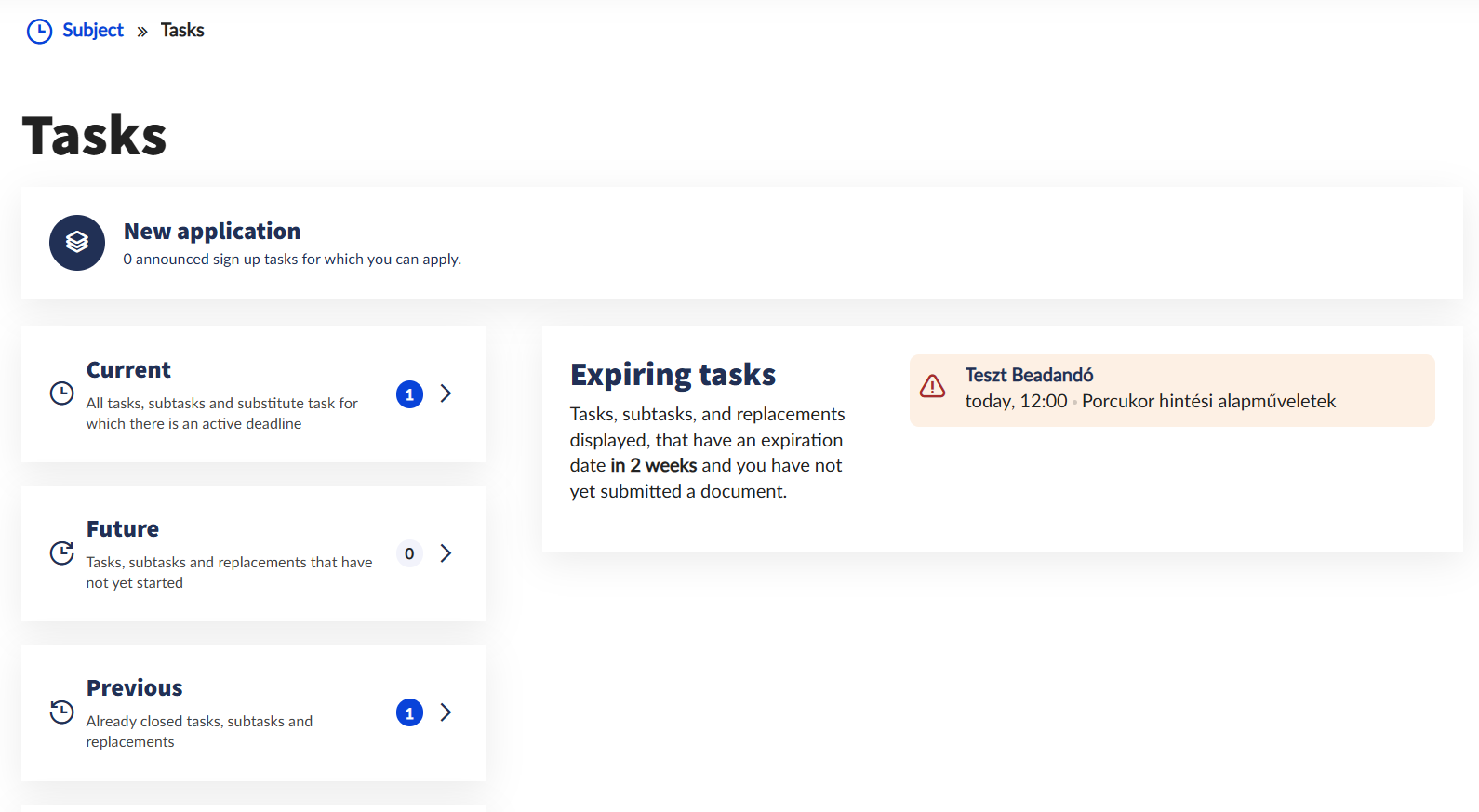
The Subject / Tasks menu contains all assignments for the courses you are enrolled in. The middle tab displays a list of assignments due within the next two weeks. In the left-hand menu, the system categorizes current, upcoming, and past assignments. If you need to register for an assignment in advance, you can do so in the New Application section at the top of the page.
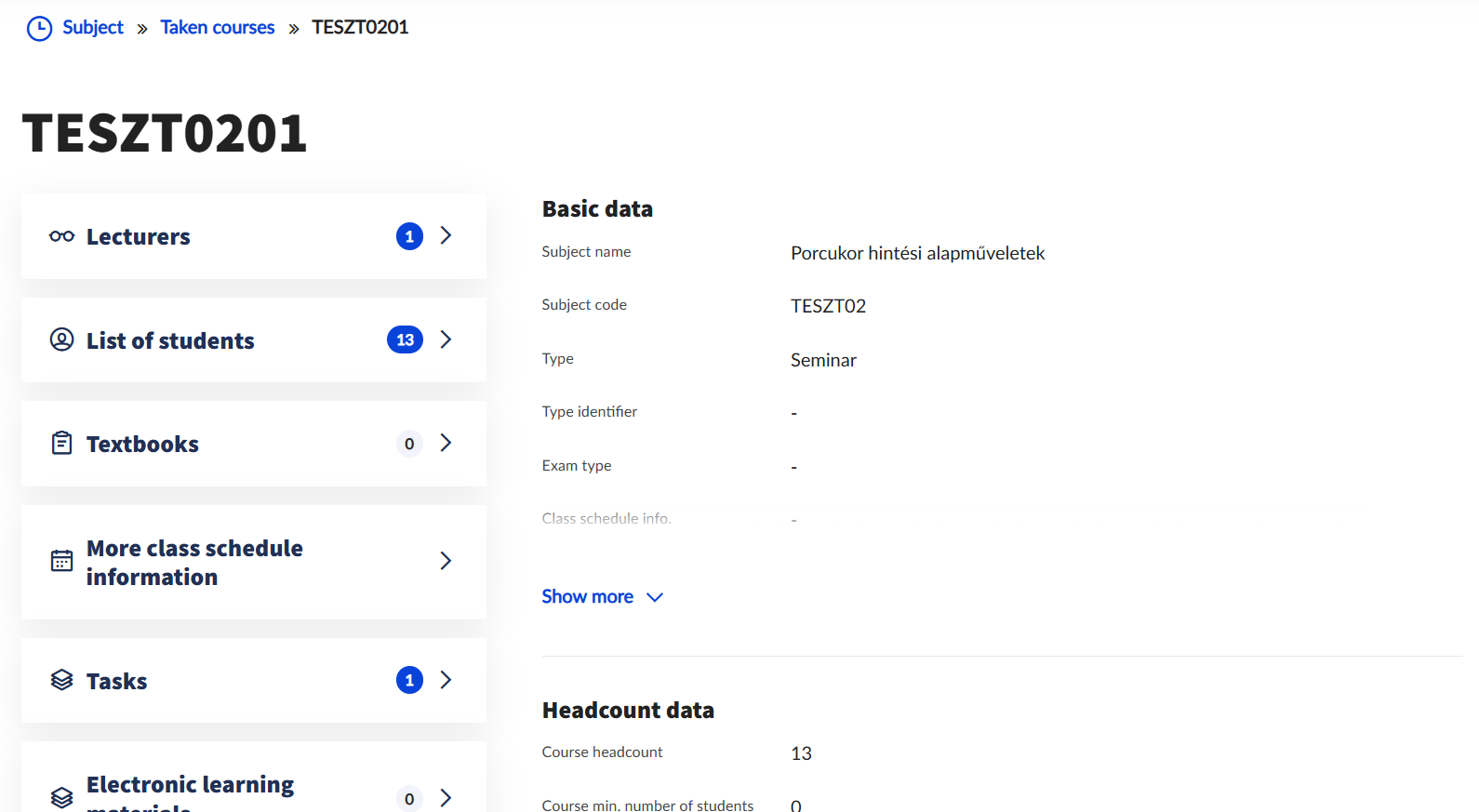
You can view the tasks for a specific course in the Subject / Taken courses menu, after visiting the Details section of the course.
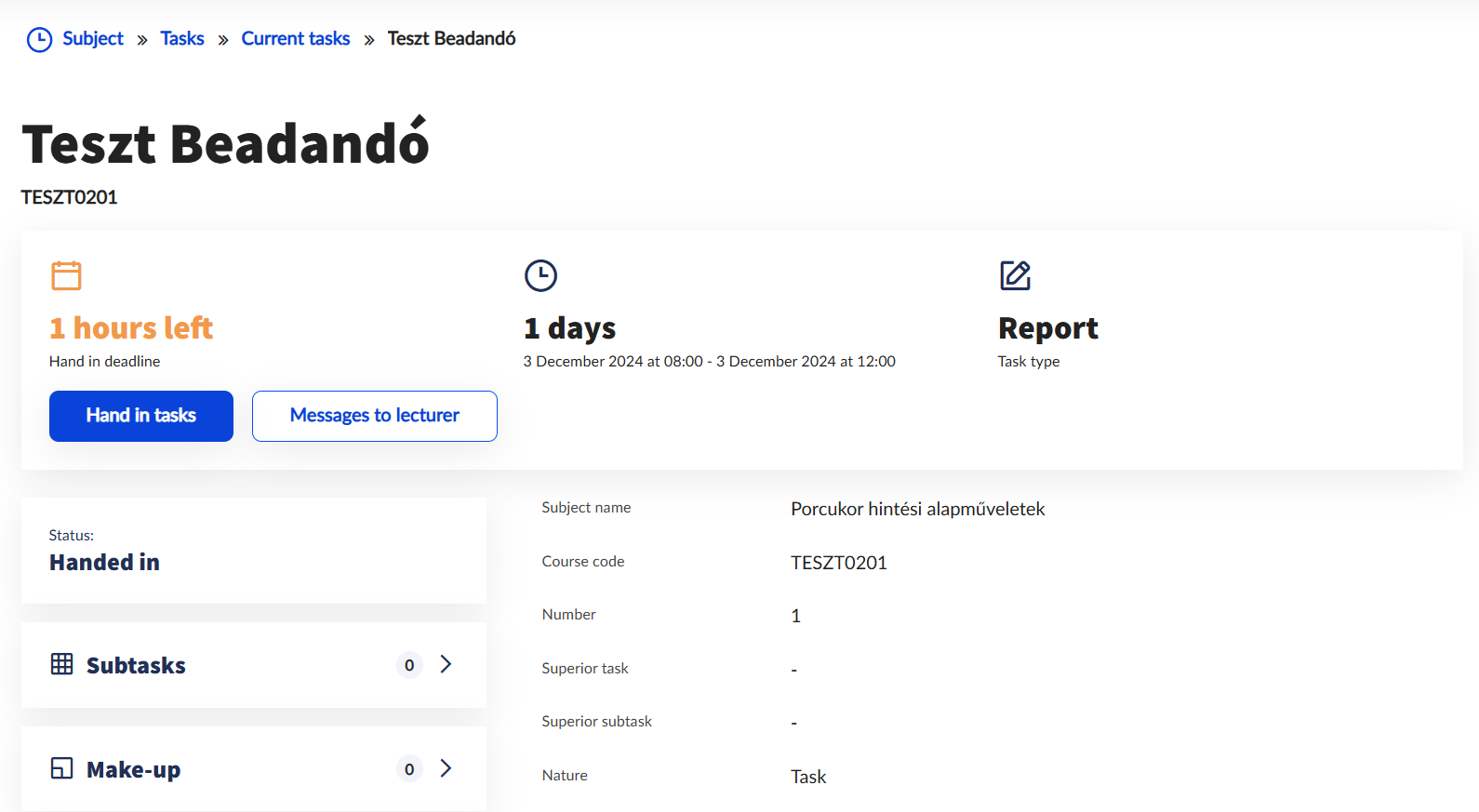
Among the task details, the system highlights the most important information about the task, the time remaining until the deadline, and the task status.
When you click the Hand in tasks button, a pop-up window appears with the option to upload a file. The window displays the specified format and size limits.
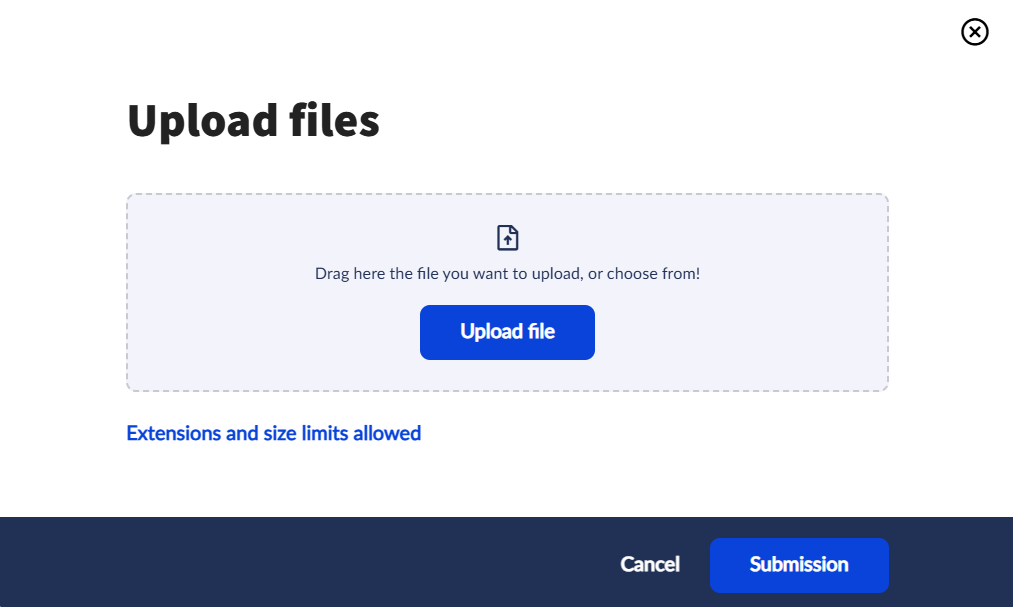
It is important to note that submitting the task does not occur automatically when the file is uploaded; the process can be interrupted. If the student simply closes the interface instead of clicking the Submission button, the submission will not be finalized.
If the task is of the Electronic Exam or Pre-exam Test type, a Unipoll exam questionnaire becomes available starting from the task’s start date. After clicking on the Test Sheets button, the Unipoll exam always opens in a separate browser tab, so make sure that pop-ups are allowed in your browser in use!
If the assignment was announced as a practice exam, the available practice will appear in a green bar on the assignment’s details page and can be started before the task’s start date.
